CygNet services can be backed up on demand at any time. The BACKUP_NOW info item triggers any CygNet service to immediately perform a backup. A backup on demand can be invoked from CygNet Explorer, the MSS, or from any supported scripting environment.
The CygNet services must have the backup directory (BACKUP_PATH keyword) defined in the service’s configuration file in order for the service backup on demand to occur.
Executing a backup on demand feature will not affect the automatic backup. The automatic backup will still run at the time scheduled in the service’s configuration file.
See the SVCINFO Security Event for the applicable CygNet Service in the Security Reference topics for more information about security access levels for performing a backup on demand.
From CygNet Explorer, right-click on any service in the left-hand service hierarchy pane and select Service Details. Click Options on the lower left, and choose Service Backup Info.
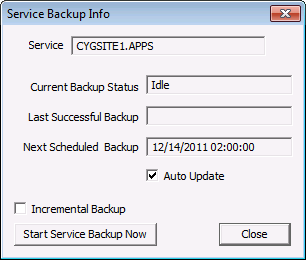
The Service Backup Info dialog box shows information about the last successful backup that has run. To immediately begin a new backup regardless of the next scheduled backup time, click Start Service Backup Now.
| Option | Description |
|---|---|
|
Service |
Name of the service that is selected. |
|
Current Backup Status |
Specifies the status of the current backup process, either Idle or Backing Up. |
|
Last Successful Backup |
Date and timestamp of the last successful backup that has run for the service selected. |
|
Next Scheduled Backup |
Date and timestamp for the next scheduled backup. |
|
Auto Update |
If enabled, the Current Backup Status value will auto refresh during the backup process indicating if the backup is running (Backing Up) or is completed (Idle). |
|
Incremental Backup |
If enabled, the backup will be incremental. For DBS-based services the transaction log files will be written to the backup path and stored there until a full backup is performed. |
|
Start Service Backup Now |
Click to start the backup for the service selected. |
|
Close |
Close the Service Backup Info dialog box. |
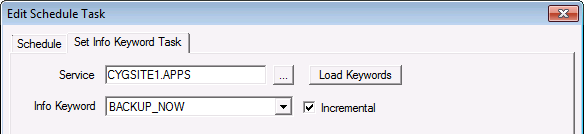
The Backup on Demand/Backup Now feature can be scheduled through the use of a Set Info Keyword task in the Master Scheduling Service (MSS). The task will send the BACKUP_NOW keyword to the specified service to begin the service backup. Scheduled tasks for the Backup Now feature must be configured on a per service basis. See Scheduler for more information about this and other scheduled tasks.
To Schedule a Backup Now Operation
The Backup on Demand feature can also be invoked via script. Scripts must utilize the BACKUP_NOW info keyword and can be called from CygNet Studio, or any regular VBScript file. A backup from an HSS scripted point is not allowed.
Example
The following example shows just one of the many implementations of scripting a Backup-on-Demand feature. The example shows how to script a button in CygNet Studio to invoke a full backup now operation from a service selected on a group grid:
|
Sub btnBackupNow_EventClick() Dim This : Set This = btnBackupNow Dim arrGsResults Dim iRow Dim strFac Dim strSvc
iRow = GroupGridTool1.X.GetSelectedRow strFac = GroupGridTool1.X.RowFacility(iRow) strSvc = Replace(strFac, "_", ".", 1, 1)
If msgbox("Are you sure you want to back up " & strSvc & " now?", vbYesno, "Confirm Backup") = vbYes Then
'backup SetGenserveInfo strSvc, "BACKUP_NOW=TRUE", arrGsResults
If Not arrGsresults(i, 1) Then msgbox "Backup request rejected." End If End If End Sub |
To invoke an incremental backup on demand replace "BACKUP_NOW=TRUE" with "BACKUP_NOW=INCREMENT_BACKUP" in the above script.

|
|
|

